By Akshay Singh
How to Structure HTML Properly: A Guide to Semantic Web Pages in 2026
When building a web page, the easiest approach is often to wrap everything in <div> and <span> tags and rely entirely on CSS for the layout. This practice, commonly referred to as "div soup," was prevalent in the early days of the web.
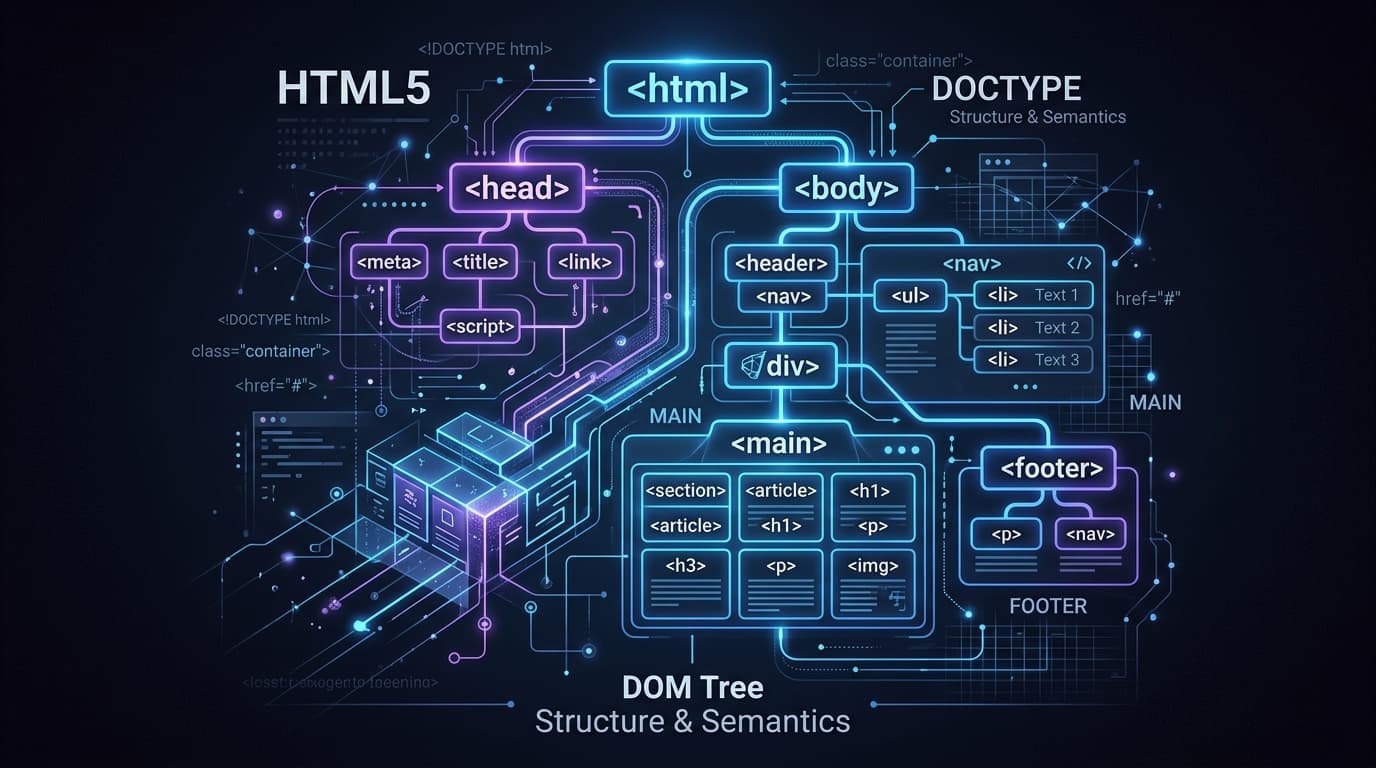
However, in 2026, modern web development requires more than just making a page look good visually. Semantic HTML is the practice of using HTML markup to reinforce the meaning of the information in web pages, rather than merely defining its presentation.
In this tutorial, we will explore why semantic HTML matters and how you can structure your web pages correctly using modern HTML5 elements.
Why Semantic HTML Matters
Writing semantic HTML isn't just about clean code; it provides several tangible benefits:
- Accessibility (a11y): Screen readers and assistive technologies rely heavily on semantic landmarks (like
<nav>,<main>, and<footer>) to navigate a page. A screen reader doesn't know what<div class="nav">means, but it explicitly understands<nav>. - SEO (Search Engine Optimization): Search engine crawlers use tags to determine the hierarchy and importance of content. Proper use of
<article>,<section>, and heading tags (<h1>to<h6>) helps crawlers build rich snippets and understand your page better. - Maintainability: Semantic tags make your codebase significantly easier for other developers to read and understand.
<aside>clearly indicates a sidebar, whereas<div class="sidebar-wrapper">requires the developer to infer meaning from a CSS class. - Built-in Browser Behavior: Many semantic elements come with built-in keyboard accessibility and browser behaviors out of the box (e.g.,
<button>vs.<div onClick="...">).
The Core Structural Elements
Let's look at the primary HTML5 landmarks you should be using to structure your documents.
1. <header>
The <header> element represents introductory content or a set of navigational links. It typically contains the site logo, search form, and the main navigation.
<header>
  <div class="logo">
    <img src="/logo.svg" alt="TheDailyDevs Logo" />
  </div>
  <!-- Navigation usually lives inside the header -->
  <nav aria-label="Main Navigation">
    <ul>
      <li><a href="/">Home</a></li>
      <li><a href="/tutorials">Tutorials</a></li>
    </ul>
  </nav>
</header>
2. <nav>
The <nav> element is reserved strictly for major navigation blocks. You don't need to wrap every single link group in a <nav>, but primary site navigation, pagination, or a table of contents should use it.
3. <main>
The <main> tag is one of the most critical landmarks for accessibility. It specifies the dominant content of the <body> of a document.
- There should be only one
<main>element visible on a page. - It should not be hidden inside a
<header>,<footer>,<nav>, or<article>.
<main>
  <h1>Semantic HTML Guide</h1>
  <p>Welcome to our comprehensive guide on HTML structure...</p>
</main>
4. <article> and <section>
These two tags are often confused, but they serve distinct purposes:
<article>: Represents a self-contained, independent piece of content that could theoretically be syndicated or reused elsewhere (like a blog post, a news article, or a forum post).<section>: Represents a standalone section of a document, usually grouped thematically and accompanied by a heading. Think of it as a generic wrapper for a chunk of related content.
<main>
  <article>
    <header>
      <h1>Understanding React Server Components</h1>
      <time datetime="2026-08-15">August 15, 2026</time>
    </header>

    <section aria-labelledby="intro-heading">
      <h2 id="intro-heading">Introduction</h2>
      <p>Server components are changing how we build React apps...</p>
    </section>

    <section aria-labelledby="benefits-heading">
      <h2 id="benefits-heading">Key Benefits</h2>
      <ul>
        <li>Zero bundle size impact</li>
        <li>Direct backend access</li>
      </ul>
    </section>
  </article>
</main>
Note: Notice the use of
aria-labelledbylinking the<section>to its heading. This is a great pattern for ensuring assistive technologies can correctly announce the section's purpose.
5. <aside>
The <aside> element is used for content that is tangentially related to the content around it. It's most commonly used for sidebars, call-out boxes, or advertising blocks.
<aside>
  <h3>Related Tutorials</h3>
  <ul>
    <li><a href="/tutorial/css/flexbox-grid">Mastering CSS Grid and Flexbox</a></li>
    <li><a href="/tutorial/html/image-optimization">HTML Image Optimization</a></li>
  </ul>
</aside>
6. <footer>
The <footer> element represents a footer for its nearest ancestor sectioning content or sectioning root. At the page level, it contains copyright data, related links, and legal navigation.
<footer>
<p>© 2026 TheDailyDevs. All rights reserved.</p>
<nav aria-label="Legal Navigation">
<a href="/legal/privacy">Privacy Policy</a>
<a href="/legal/terms">Terms of Service</a>
</nav>
</footer>
Putting It All Together: A Complete Layout
Here is how a complete, well-structured web page looks when you combine all these elements:
<!DOCTYPE html>
<html lang="en">
<head>
<meta charset="UTF-8">
<meta name="viewport" content="width=device-width, initial-scale=1.0">
<title>How to Structure HTML | TheDailyDevs</title>
</head>
<body>
<!-- Site Header -->
<header>
<a href="/">TheDailyDevs</a>
<nav aria-label="Main Navigation">
<ul>
<li><a href="/topics">Topics</a></li>
<li><a href="/tutorial">Tutorials</a></li>
</ul>
</nav>
</header>
<div class="layout-wrapper">
<!-- Main Content Area -->
<main>
<article>
<h1>How to Structure HTML Properly</h1>
<p>In this guide, we explore semantic HTML...</p>
<section>
<h2>Conclusion</h2>
<p>Using semantic HTML is essential for the modern web.</p>
</section>
</article>
</main>
<!-- Sidebar -->
<aside>
<h3>Newsletter</h3>
<p>Subscribe for weekly developer tips.</p>
<!-- Form goes here -->
</aside>
</div>
<!-- Site Footer -->
<footer>
<p>© 2026 TheDailyDevs.</p>
</footer>
</body>
</html>
Summary
Moving away from <div> soup takes a conscious effort, but the rewards in accessibility, SEO, and developer experience are immense. By default, ask yourself: "Does an HTML element already exist that describes this content?" If the answer is yes, use it. If not, only then should you reach for a <div>.
For serving optimized media inside your semantic layout, read our step-by-step tutorial on The Complete Guide to HTML Image Optimization in 2026.
Happy coding!

Written by Akshay Singh
Full-stack engineer and technical writer at TheDailyDevs. Sharing practical step-by-step tutorials and best practices for modern web technologies.
